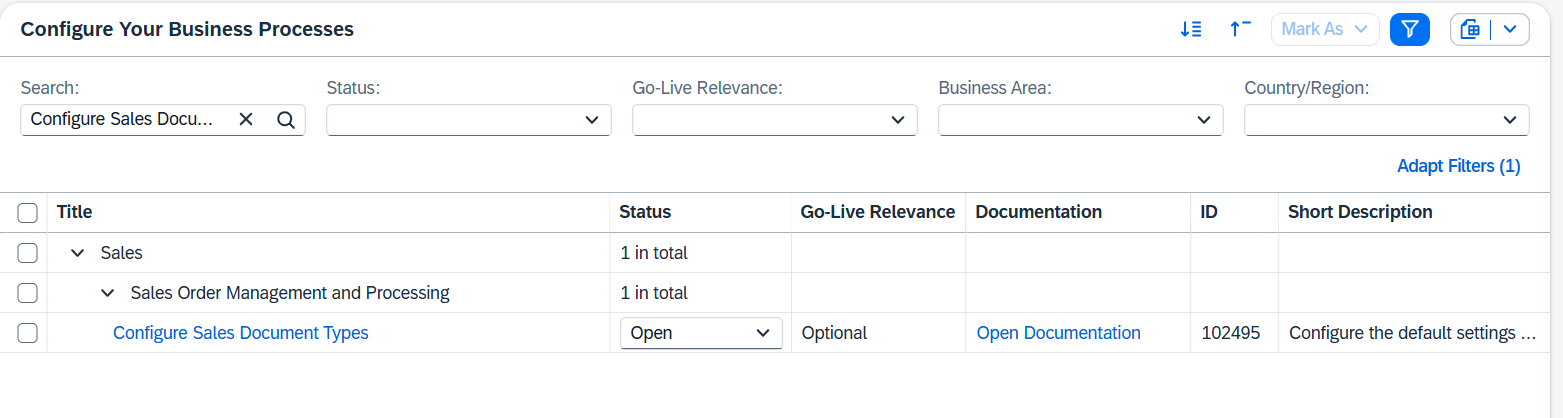
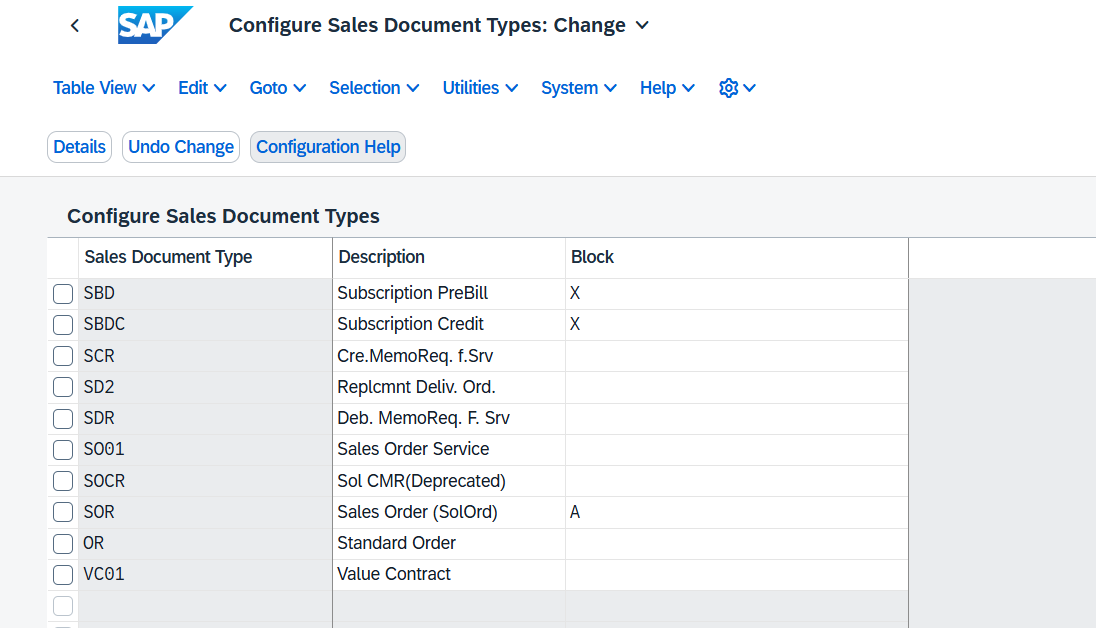

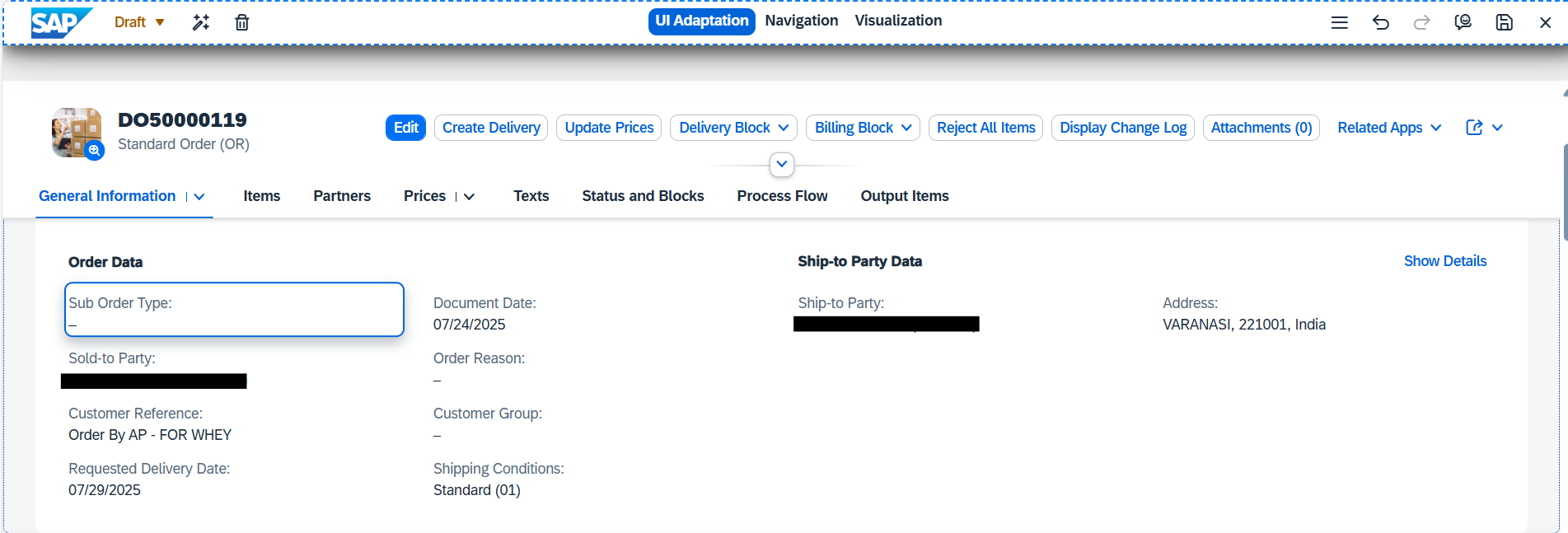


In SAP S/4HANA Public Cloud, Sales Document Types are delivered as standard and cannot be freely extended or customized. The SSCUI Configure Sales Document Types (ID: 102495) does not allow creation of new order types or copying existing ones, which becomes a challenge for businesses requiring additional order categories such as Rental Orders, Replacement Orders, Warranty Orders, or Service Orders.
To address this gap without custom backend development, we implemented a configuration-free solution by introducing a custom dropdown field on the Sales Order header using the Custom Fields & Logic app. Once published and activated through Adapt UI, users can select the required Sub-Order Type while creating or editing a sales order – both in SAP Fiori and in the GUI screens (VA01/VA02/VA03).
This blog explains the complete step-by-step approach to defining the custom field enabling relevant APIs and analytics usage, and exposing it on the Sales Order UI which enables smooth order categorization even in SAP Public Cloud.
In SAP Public Cloud, Custom Order Types can’t be configured in the SSCUI ID 102495 ‘Configure Sales Document Types’. As a workaround, a custom dropdown field can be added to the sales order header to select the Z-Order type.
If you check the configuration in CBC to define ‘’Configure Sales Document Types’’, There are no option available to create new or copy existing sales document type.
As an alternative, Define a custom field in tenant with the application ‘’Custom Fields’’
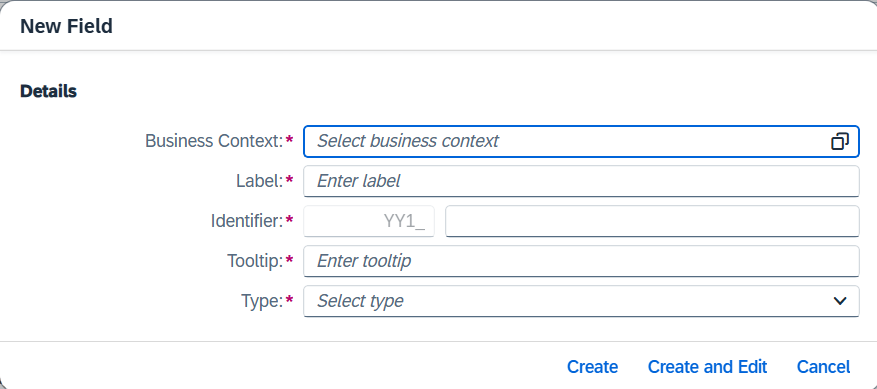
Click on ‘’+’’ button to create a new custom field.
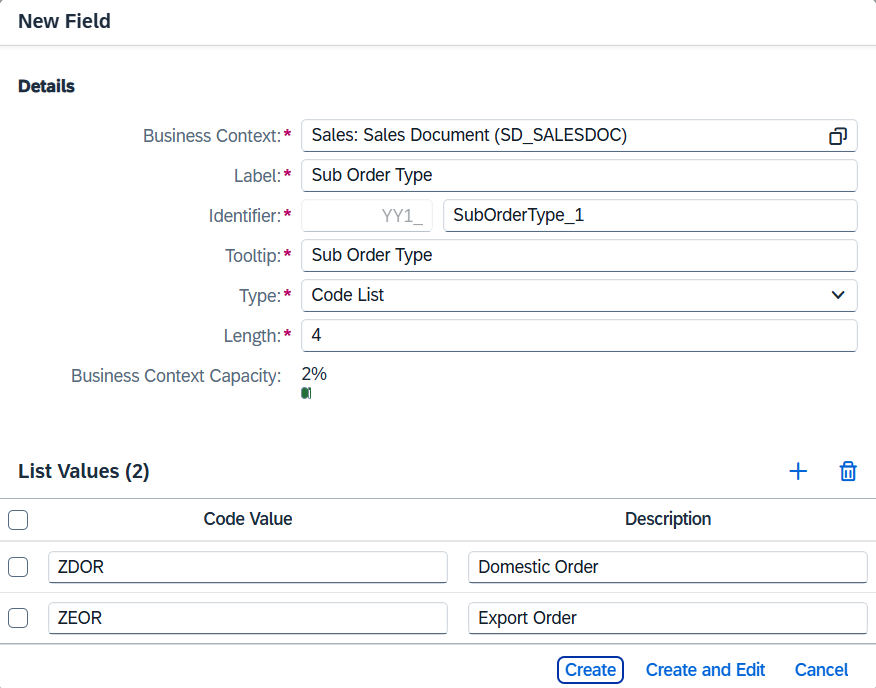
Select the business context and Field Type.
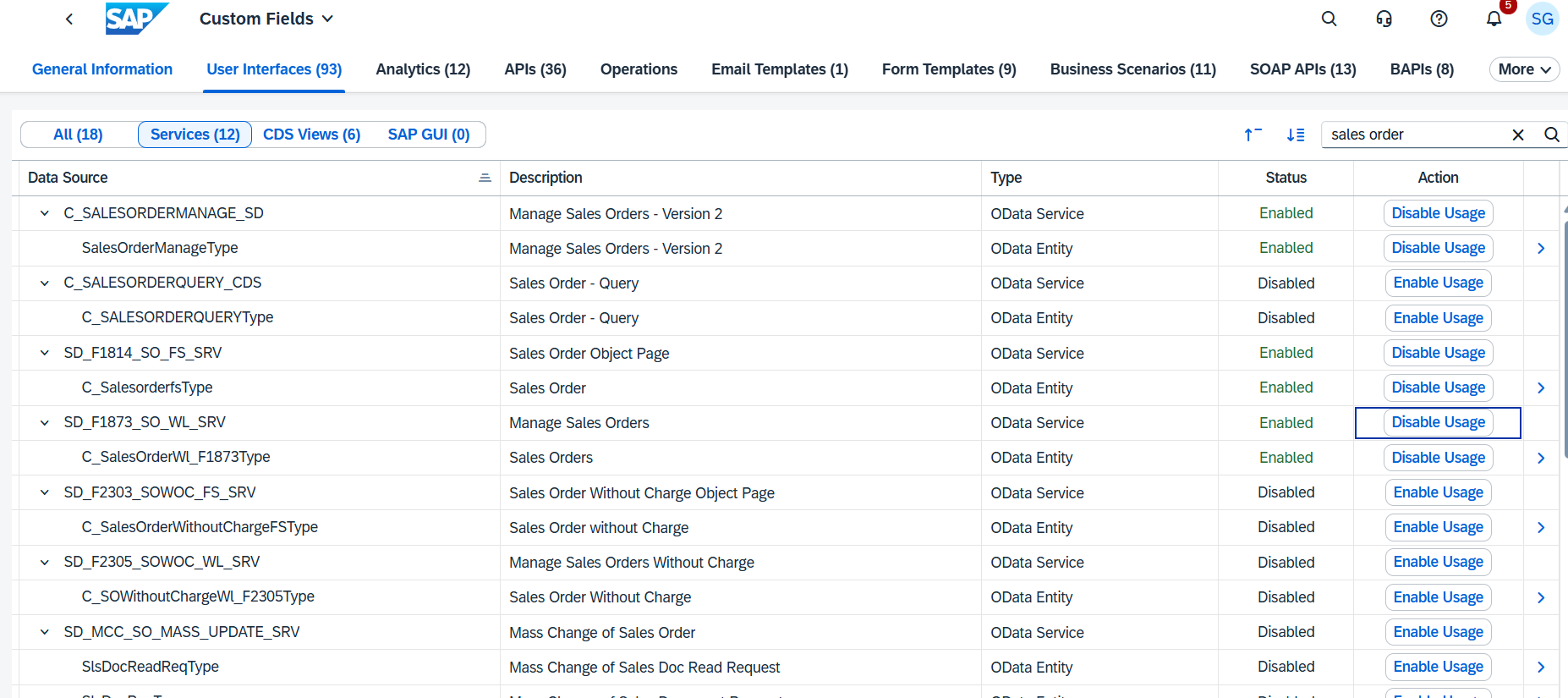
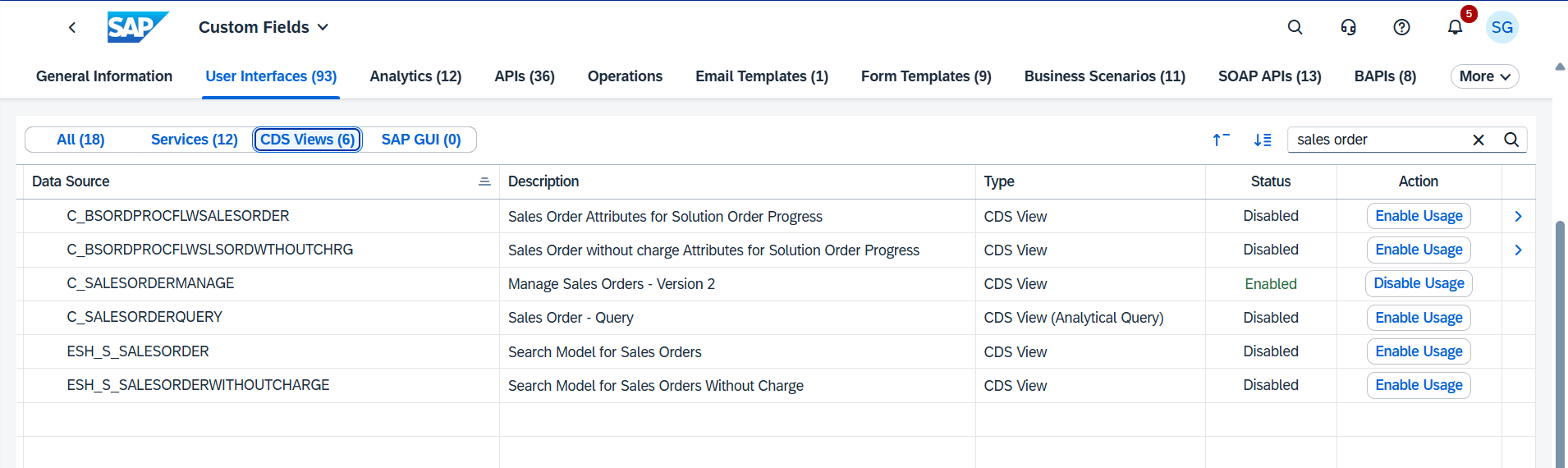
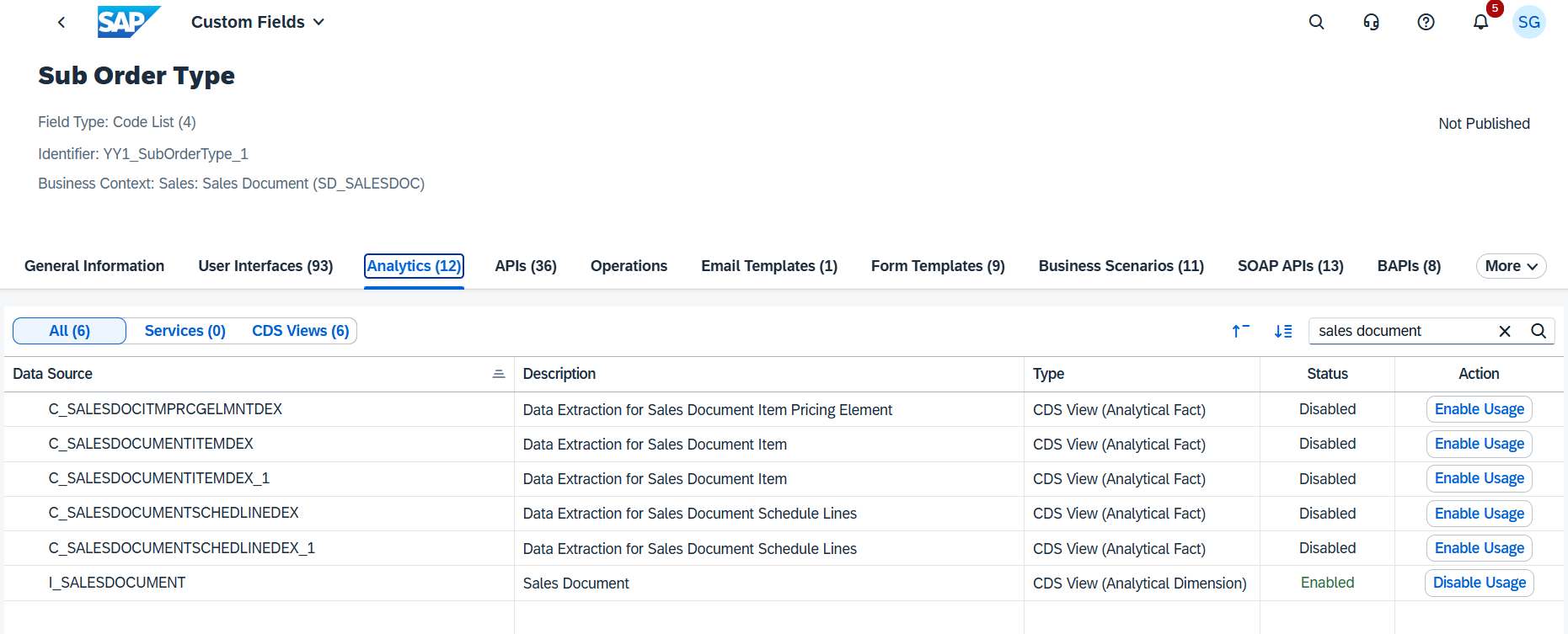
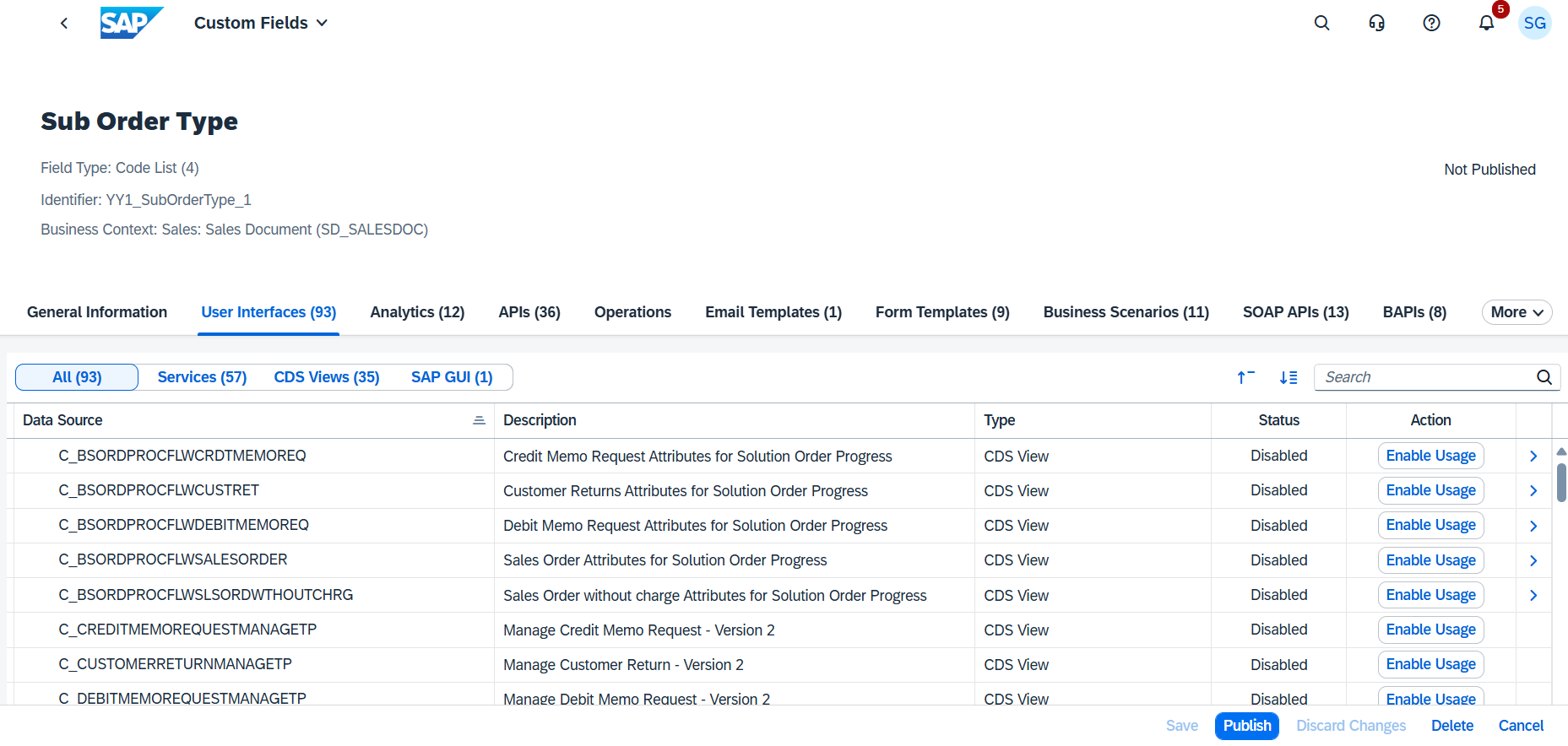
Add the Code Value as Sub Order type clicking on Button. Click on Create and Edit and activate the required User Interfaces and Analytics.
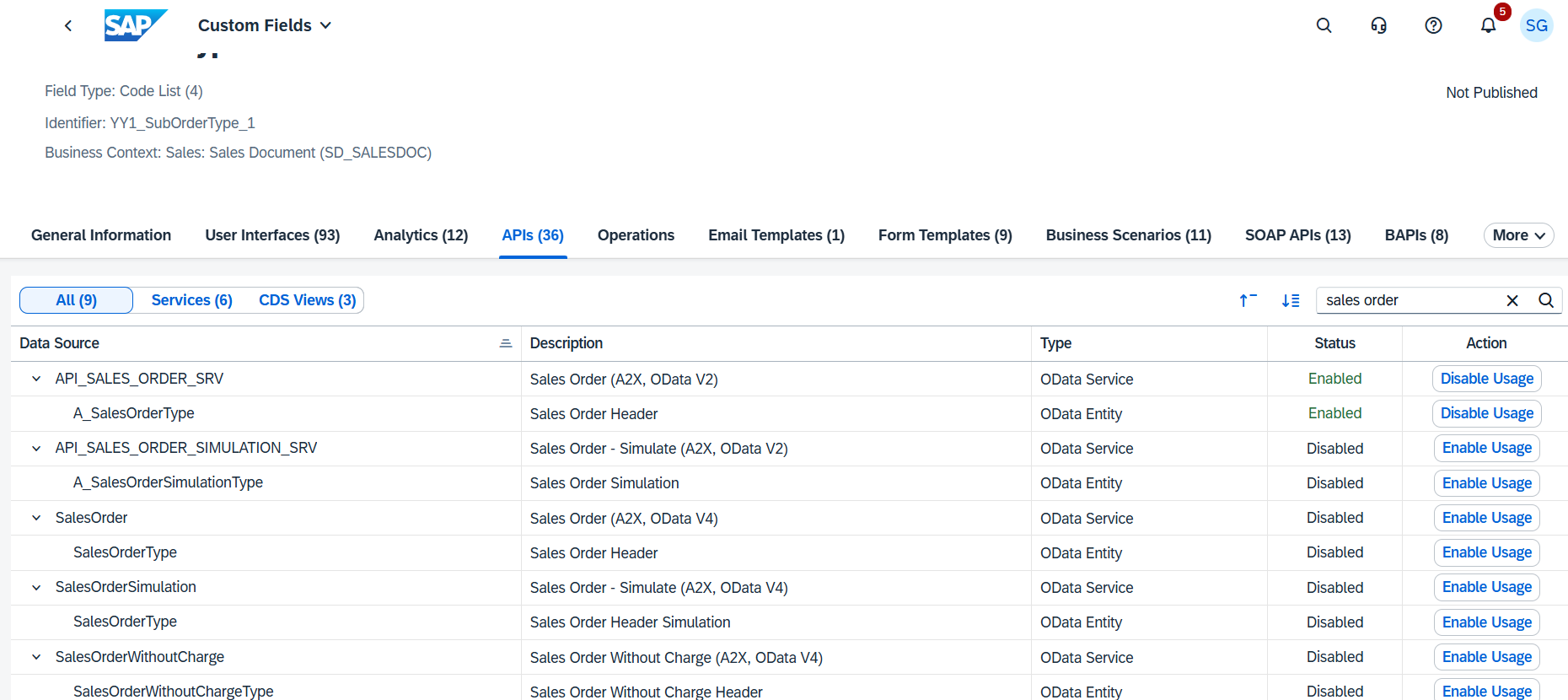
Activate for standard API API_SALES_ORDER_SRV (Sales Order (A2X, OData V2).
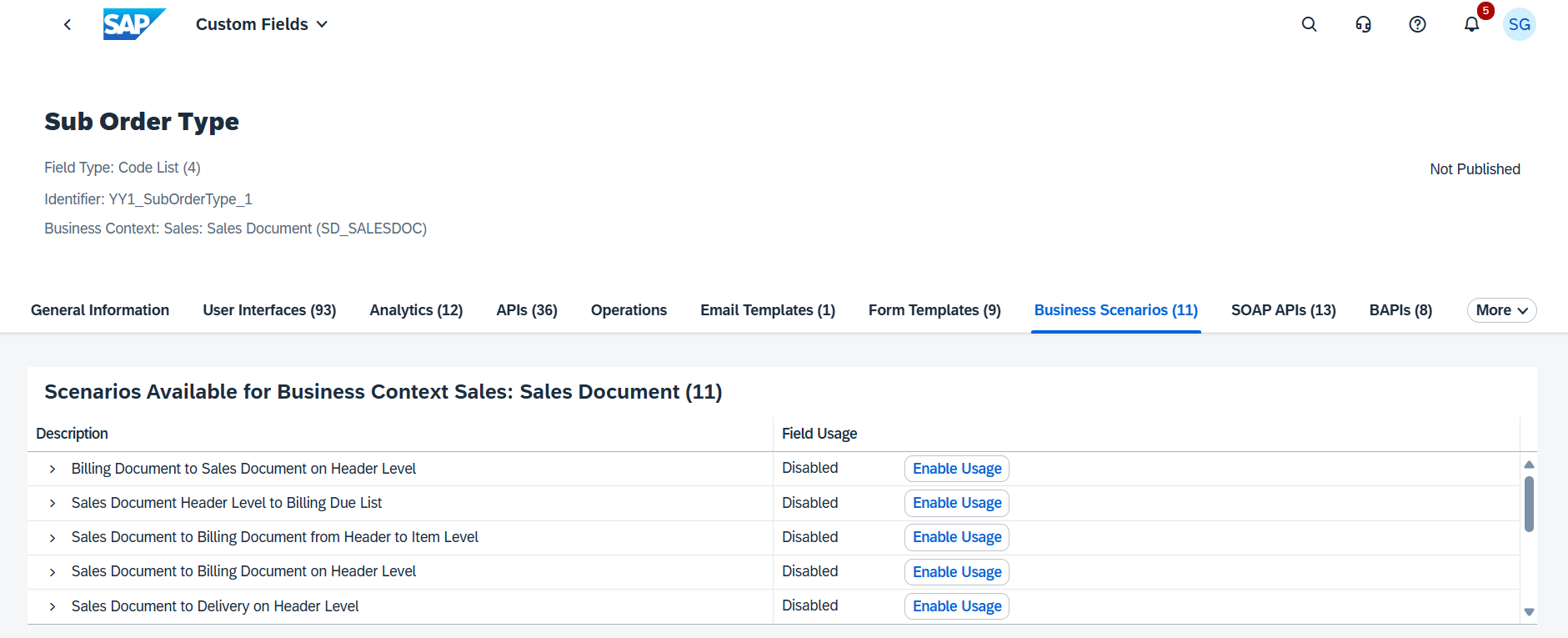
Activate business scenarios, if required.
Save it and publish.
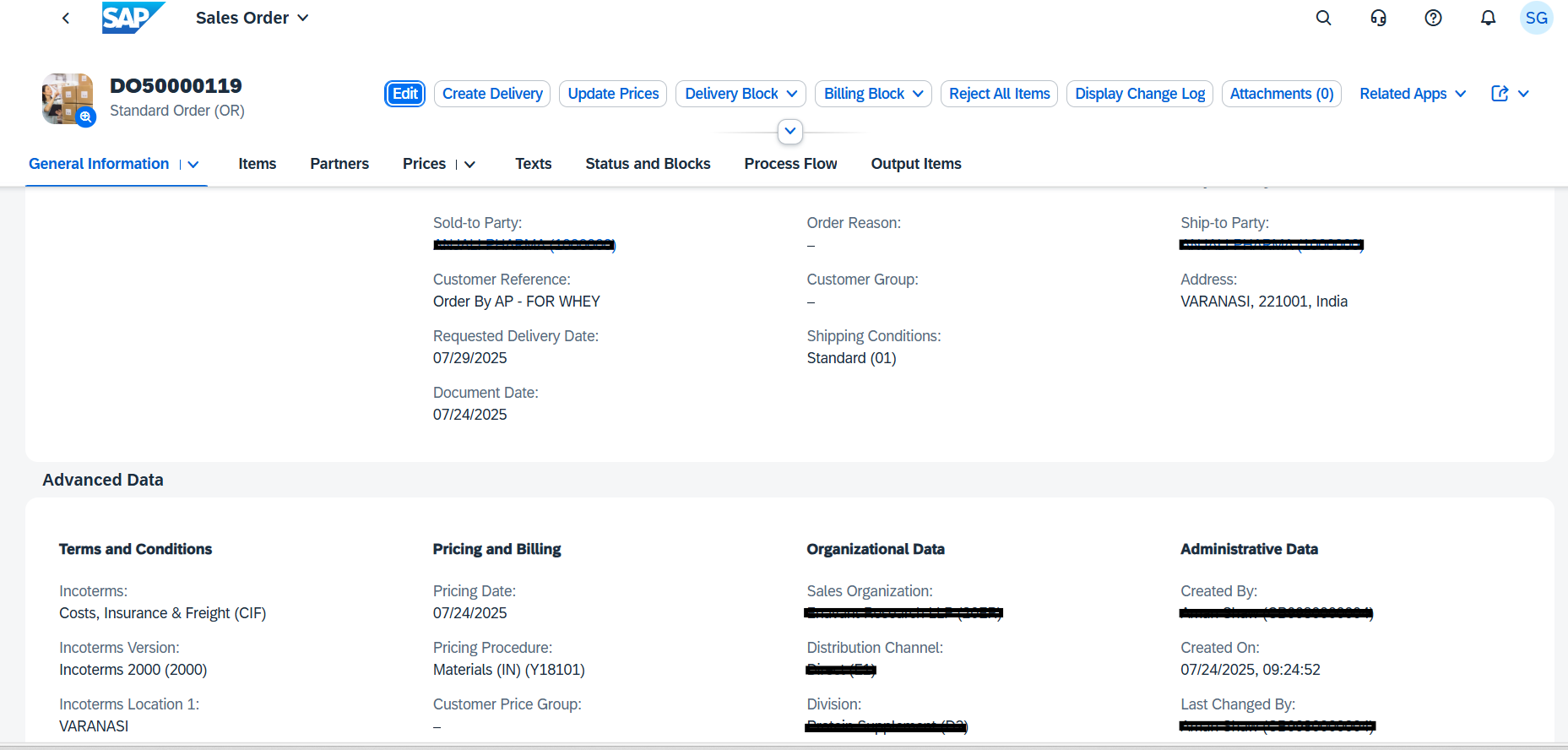
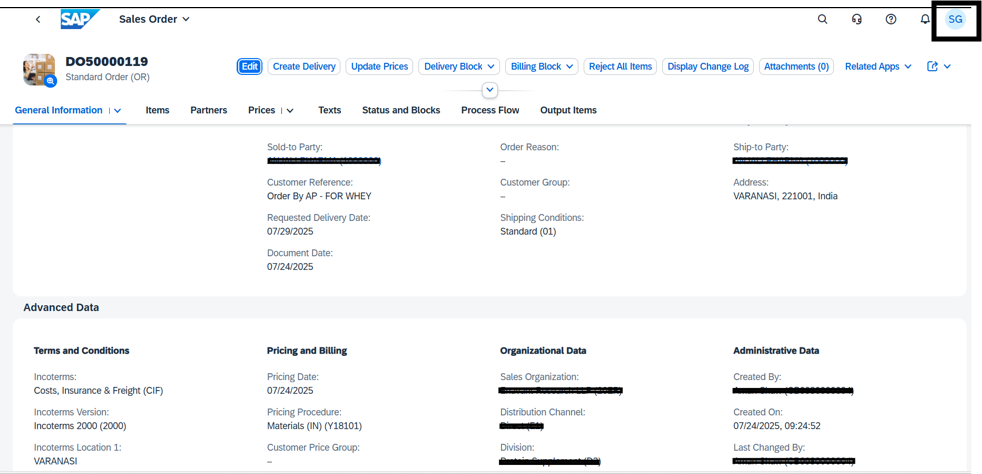
Once Published, Do Adopt UI to add the Custom Field in sales order. Go to ‘’Manage Sales Order – Version 2’’ and open an existing order
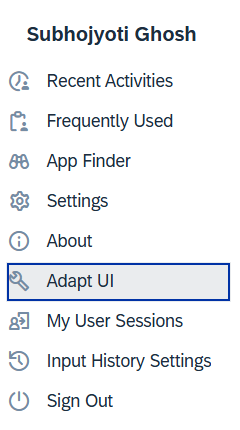
Open the User Profile option.
Click on Adopt UI.
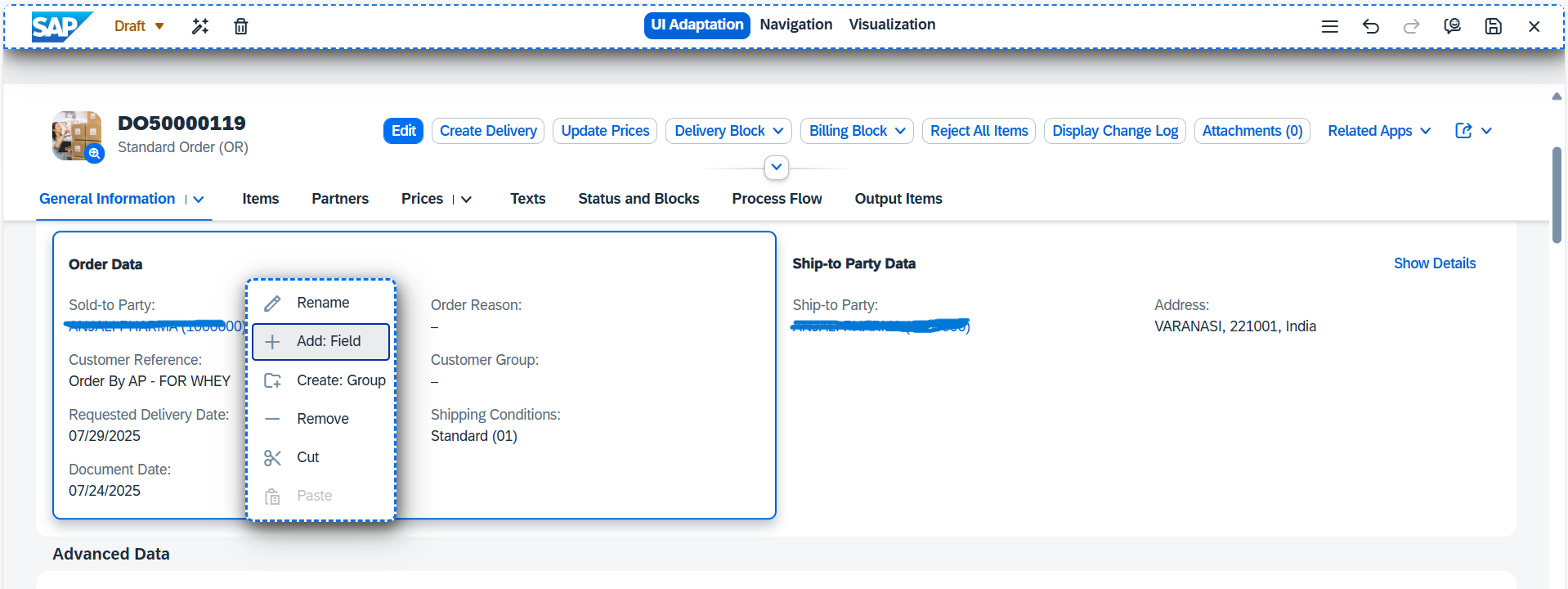
Under Order Data, right click and field.
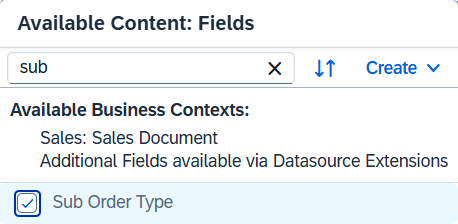
Select the field.
Click on Ok
Activate the version and back
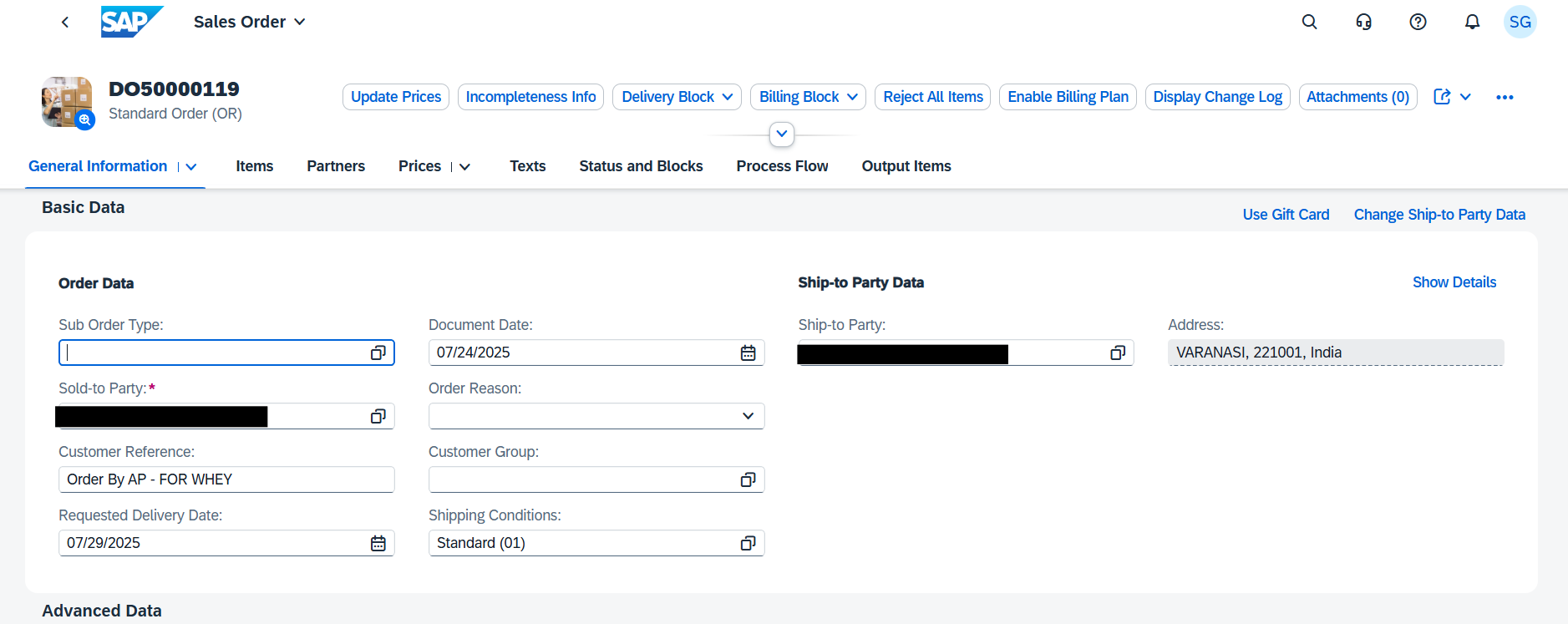
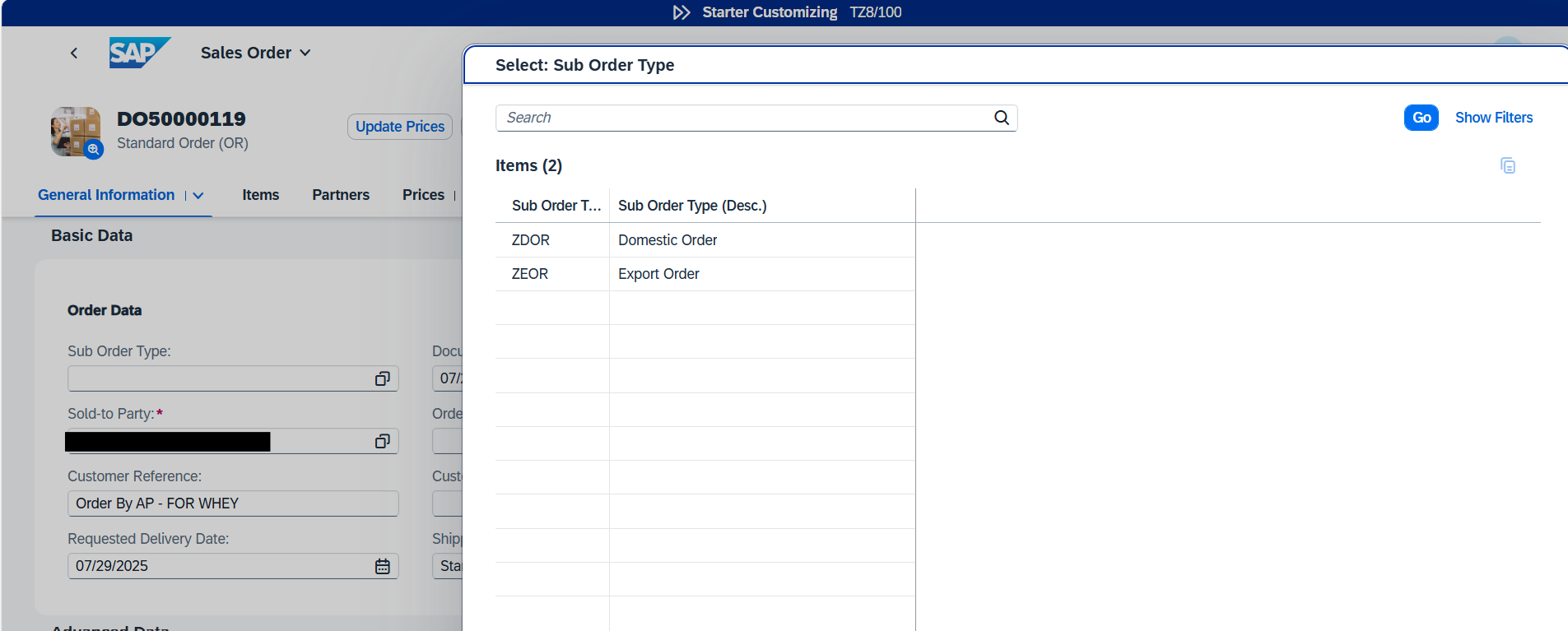
Sub Order Type field is published in the screen. Do F4 and select the required Sub Order Type.
While creating a new sales order also you will get the Sub Order type option to select. In Sales Order GUI screen (VA01/VA02/VA03), the Sub order type option will be available in the Header Custom Field tab.
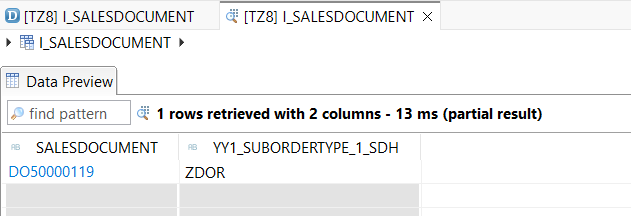
Once a custom field is published, Custom field will be added and storged in the custom CDS I_SalesDocument.